
In a previous post, I described how I setup a KB data store using Cosmos DB. This post builds on top of that and explains how to create a search index with Cosmos DB as the data source. Azure Search has a free tier that allows creation of three indexes on a data source of your choice.
You can add documents to the search index using either the push or pull method. Push method is more flexible than the Pull method. You can push data from any data source and as often as you want. This is done programmatically by invoking the Azure Search REST API.
I’m going to use the Pull method because it supports Azure Cosmos DB as a data source. The data source is scanned and documents are automatically uploaded into the search index.
Search Data source
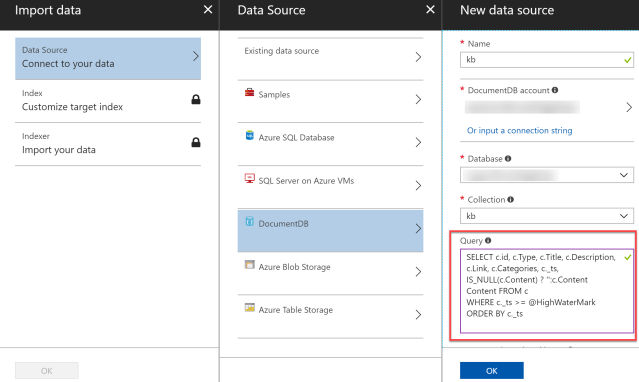
In the Azure portal, create a new Azure Search Service. In the Search Service overview blade, click Import data. Select DocumentDB in the Data Source blade. Configure the New data source by selecting the DocumentDB account, database, and the collection. You can flatten your data source by entering a query in the Query input field.
If you recall from my Migrate data to Cosmos DB post, the Content property had null values for the video-type documents. I had to enter a query to convert the null values in the Content property to an empty string. Otherwise, search won’t index the property. The WHERE clause is required by search in order to find new documents and index them.
Creating an Index
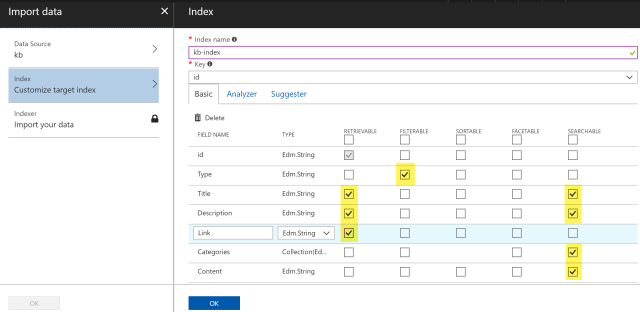
Next, create an index. Enter an index name. Select the index key. By default, the key field is Retrievable. Title and Description are both Retrievable and Searchable. I want to search and display those fields in my ticket acknowledgement email. Link is set to Retrievable as it’s display-only. And I just want to search on the Categories and Content fields, so they are set as Searchable.
Indexer
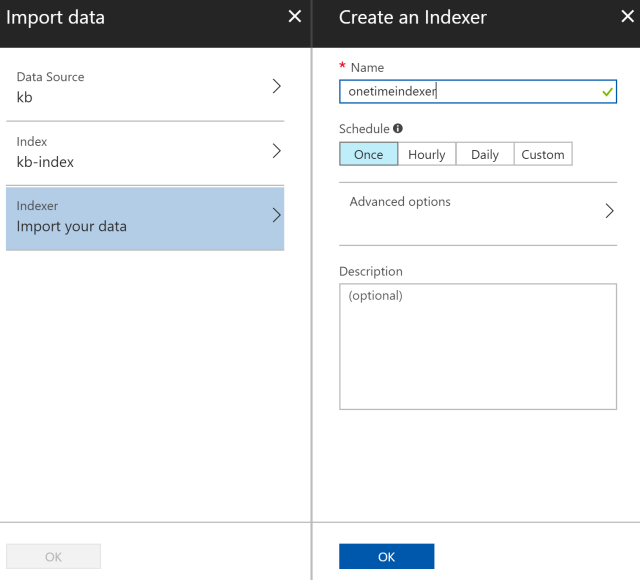
Next, create an Indexer. I have set it to execute one-time but usually you’ll want it to run on a schedule to index newly added documents. Click Ok on all the open blades and then indexing should start.
Viewing search documents
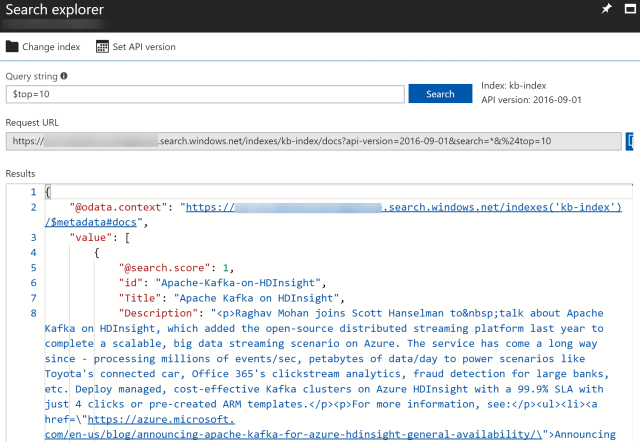
Once the documents are indexed, you can view the indexed documents through the Search Explorer.
 Ramya Jayapal