
Building on my previous article about using Azure Automation to clean up orphaned resources, this is Part 2. Here, I’ll show you how to send the collected logs to a Log Analytics workspace using the newer Log Ingestion API. The Log Analytics HTTP Data Collector API was the original method for sending custom data to an Azure Log Analytics workspace. It allowed you to post data in JSON format directly to your workspace using an HTTP POST request. You would authenticate the request with a shared key. The old API is scheduled for retirement on September 14, 2026.
The Log Ingestion API offers some advantages over the older API by allowing data transformation before sending logs to the log analytics workspace table and authentication using managed identity. I will be using the Automation Account’s Managed Identity to authenticate to the API. The managed identity needs to have the Monitoring Metrics Publisher role at the appropriate scope to send logs using the API.
Prerequisites
Assuming you already have a log analytics workspace, you need a custom table, a data collection endpoint, and a data collection rule. Data collection rules define the source, destination, and transformation that need to be applied to the logs before they are persisted. You can find DCR and DCE under Azure Monitor in the Azure portal.
The following script creates the custom table that will hold the logs sent from Azure Automation runbooks.
New-AzOperationalInsightsTable `
         -ResourceGroupName "<resource group name>"`
         -WorkspaceName "<log analytics workspace name>" `
         -TableName "<custom table name>" `
         -Column @{ "ResourceID" = "string" ;"ResourceName" = "string" ;"ResourceType" = "string" ;"SubscriptionID" = "string" ;"ResourceGroupName" = "string" ;"CleanupAction" = "string" ;"RunbookName" = "string" ;"ProjectTagValue" = "string" ;"OwnerEmail" = "string"; "TimeGenerated" = "datetime" }
The following script will create the Data Collection Endpoint and the Data Collection Rule. The custom table name in the streamDeclarations and dataFlows properties must match your custom table name exactly. Custom tables must have a suffix of “_CL”. The transformKql property is where you’ll define your data transformation using KQL. I’m directly sending the source without any transformation.
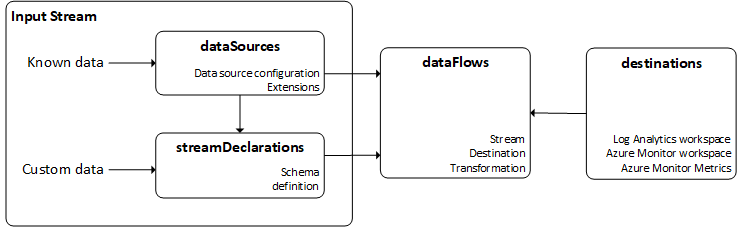
The kind is specified as Direct as I’m going to use the REST API to directly send logs to the log analytics workspace. Some of the other options available include Linux, Windows, and AgentDirectToStore. You can read more about these options here.
# Define parameters
$ResourceGroup = "<resource group name>"
$DCRName = "<dcr name>"
$Location = "<location>"
#DCEName = "<dce name>"
$DCE = New-AzDataCollectionEndpoint `
        -ResourceGroupName $ResourceGroup `
        -Name $DCEName `
        -Location $Location `
        -NetworkAclsPublicNetworkAccess "Enabled"

# Define JSON payload for the DCR
$JSONString = @"
{
  "location": "australiaeast",
  "kind": "Direct",
  "properties": {
    "streamDeclarations": {
      "Custom-<your custom table name>": {
        "columns": [
            { "name" : "ResourceID", "type" : "string" },
            { "name" : "ResourceName", "type" : "string" },
            { "name" : "ResourceType", "type" : "string" },
            { "name" : "SubscriptionID", "type" : "string" },
            { "name" : "ResourceGroupName", "type" : "string" },
            { "name" : "CleanupAction", "type" : "string" },
            { "name" : "RunbookName", "type" : "string" },
            { "name" : "ProjectTagValue", "type" : "string" },
            { "name" : "OwnerEmail", "type" : "string" },
            { "name" : "TimeGenerated", "type" : "datetime" }
        ]
      }
    },
    "destinations": {
      "logAnalytics": [
        {
          "workspaceResourceId": "/subscriptions/<subscription id>/resourceGroups/<resource group>/providers/Microsoft.OperationalInsights/workspaces/<log analytics workspace name>",
          "name": "LogAnalyticsDest"
        }
      ]
    },
    "dataFlows": [
      {
        "streams": [ "Custom-<your custom table name>" ],
        "destinations": [ "LogAnalyticsDest" ],
        "transformKql": "source",
        "outputStream": "Custom-<your custom table name>"
      }
    ]
  }
}
"@

# Create the DCR
$DCR = New-AzDataCollectionRule `
        -ResourceGroupName $ResourceGroup `
        -Name $DCRName `
        -JsonString $JSONString
Now that that’s all set up, we can look at the script that we need to add to the tagging and cleanup PowerShell runbooks to send logs to the custom table. Add a new [string]$LogAnalyticsWorkspaceId parameter to the runbook. We are using the managed identity to get an access token that is then passed in the header of the REST API call.
# Log the data to Log Analytics
if ($logEntries.Count -gt 0) {
    # Convert log entries to JSON
    $json = $logEntries | ConvertTo-Json -AsArray;
    $logType = "GCResourceCleanupLog"

    try {
        $dcr = Get-AzDataCollectionRule -ResourceGroupName "<resource group name>" -ErrorAction Stop | ? { $_.StreamDeclaration.Keys -match "${logType}_CL" } }
    catch {
        Write-Error "Failed to get DCR configuration."
        return
    }

    try {
        $dce = Get-AzDataCollectionEndpoint -ResourceGroupName "<resource group name>" -Name "dce-automation" -ErrorAction Stop
    }
    catch {
        Write-Error "Failed to get DCE configuration."
        return
    }
    # Get access token
    try {
        $token = Get-AzAccessToken -ResourceUrl "https://monitor.azure.com//.default"
        $bearerToken = $token.Token
    }
    catch {
        Write-Error "Failed to retrieve access token from Managed Identity: $_"
        return
    }

    # Define the headers
    $headers = @{
        "Authorization" = "Bearer $bearerToken"
        "Content-Type" = "application/json"
    }
    Write-Output $json
    # Send the data
    try {
        $uri = "$($dce.LogIngestionEndpoint)/dataCollectionRules/$($dcr.ImmutableId)/streams/$($dcr.StreamDeclaration.Keys)?api-version=2023-01-01"
        $retVal = Invoke-RestMethod -Uri $uri -Method Post -Headers $headers -Body $json;
        Write-Output "Successfully ingested $($logEntries.Count) record(s) into Log Analytics."
    }
    catch {
        Write-Error "Failed to log data to Log Analytics. Error: $_"
    }
}
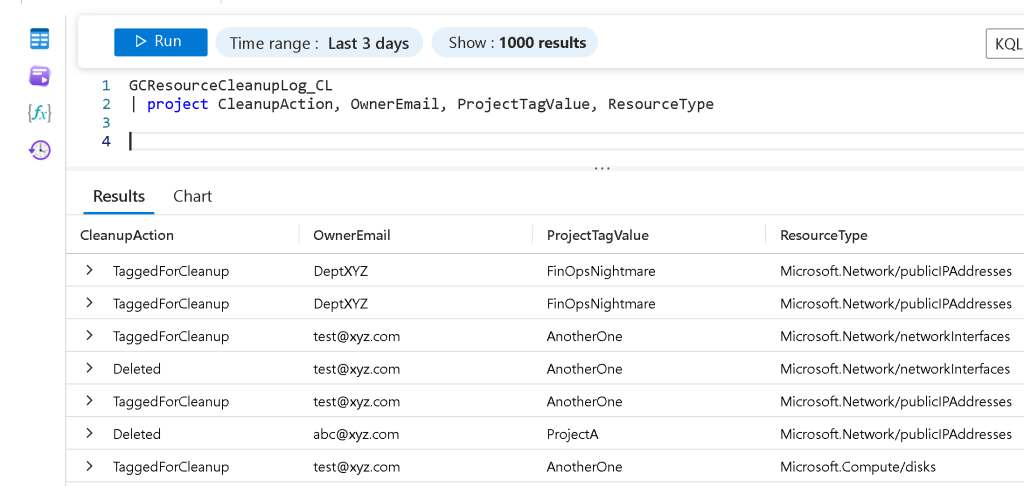
Once you save the runbook and test the new script, the logs should flow to the custom table you created. The code for the entire tagging runbook is shown below.
param(
    [string]$SubscriptionId,
    [string]$ResourceType = 'Microsoft.Network/publicIPAddresses',
    [string]$TagKey = 'MarkedForCleanup',
    [string]$LogAnalyticsWorkspaceId
)

# Authenticate to Azure
try {
    Connect-AzAccount -Identity
}
catch {
    Write-Error "Failed to connect."
    return
}


# Set the context to the provided subscription ID
# Make it explicit which subscription is being targeted by the following commands
Set-AzContext -SubscriptionId $SubscriptionId

# Define the current date for the tag value
$currentTime = Get-Date
$logEntries = @()

Write-Output "Starting scan for orphaned resources of type: $ResourceType"

switch ($ResourceType) {
    'Microsoft.Network/publicIPAddresses' {
        $resources = Get-AzPublicIpAddress | Where-Object { $_.IpConfiguration -eq $null }
        $description = "Public IP"
    }
    'Microsoft.Compute/disks' {
        $resources = Get-AzDisk | Where-Object { $_.ManagedBy -eq $null }
        $description = "Disk"
    }
    'Microsoft.Network/networkInterfaces' {
        $resources = Get-AzNetworkInterface | Where-Object { $_.VirtualMachine -eq $null }
        $description = "NIC"
    }
    default {
        Write-Error "Unsupported resource type: $ResourceType"
        exit
    }
}

foreach ($orphanedResource in $resources) {
    $resource = Get-AzResource -ResourceType $ResourceType -ResourceGroupName $orphanedResource.ResourceGroupName -ResourceName $orphanedResource.Name
    # Check for the exemption tag first
    if ($resource.Tags.ContainsKey('CleanupExemption') -and ($resource.Tags.CleanupExemption -eq 'true')) {
        Write-Output "Skipping $($resource.Name) due to CleanupExemption tag."
        continue
    }

    # Check if the resource has already been tagged
    if (-not $resource.Tags.ContainsKey($TagKey)) {
        $tags = $resource.Tags
        $tags.Add($TagKey, $currentTime.ToString("yyyy-MM-dd"))

        # Apply the tag
        try {
            Set-AzResource -ResourceGroupName $resource.ResourceGroupName -ResourceName $resource.Name -ResourceType $ResourceType -Tag $tags -Force -ErrorAction Stop

            # Create the log entry object
            $logEntry = @{
                ResourceID = $resource.Id
                ResourceName = $resource.Name
                ResourceType = $resource.ResourceType
                SubscriptionID = $resource.Id.Split('/')[2]
                ResourceGroupName = $resource.ResourceGroupName
                CleanupAction = "TaggedForCleanup"
                RunbookName = "TagForCleanup"
                ProjectTagValue = $resource.Tags.Project
                OwnerEmail = $resource.Tags.OwnerEmail
                TimeGenerated = (Get-Date).ToString("o")
            }

            $logEntries += $logEntry
            Write-Output "Successfully tagged orphaned ${description}: $($resource.Name)."
        }
        catch {
            Write-Error "Failed to tag ${description}: $($resource.Name). Error: $_"
        }
    }
}

# Log the data to Log Analytics
if ($logEntries.Count -gt 0) {
    # Convert log entries to JSON
    $json = $logEntries | ConvertTo-Json -AsArray;
    $logType = "GCResourceCleanupLog"

    try {
        $dcr = Get-AzDataCollectionRule -ResourceGroupName "<resource group name>" -ErrorAction Stop | ? { $_.StreamDeclaration.Keys -match "${logType}_CL" } }
    catch {
        Write-Error "Failed to get DCR configuration."
        return
    }

    try {
        $dce = Get-AzDataCollectionEndpoint -ResourceGroupName "<resource group name>" -Name "dce-automation" -ErrorAction Stop
    }
    catch {
        Write-Error "Failed to get DCE configuration."
        return
    }
    # Get access token
    try {
        $token = Get-AzAccessToken -ResourceUrl "https://monitor.azure.com//.default"
        $bearerToken = $token.Token
    }
    catch {
        Write-Error "Failed to retrieve access token from Managed Identity: $_"
        return
    }

    # Define the headers
    $headers = @{
        "Authorization" = "Bearer $bearerToken"
        "Content-Type" = "application/json"
    }
    Write-Output $json
    # Send the data
    try {
        $uri = "$($dce.LogIngestionEndpoint)/dataCollectionRules/$($dcr.ImmutableId)/streams/$($dcr.StreamDeclaration.Keys)?api-version=2023-01-01"
        $retVal = Invoke-RestMethod -Uri $uri -Method Post -Headers $headers -Body $json;
        Write-Output "Successfully ingested $($logEntries.Count) record(s) into Log Analytics."
    }
    catch {
        Write-Error "Failed to log data to Log Analytics. Error: $_"
    }
}
Write-Output "Finished tagging run for resource type: $ResourceType."
Result
The image below shows the custom table in the log analytics workspace. Note, if you created tables using the old API, they now show up with the word “classic” next to them.
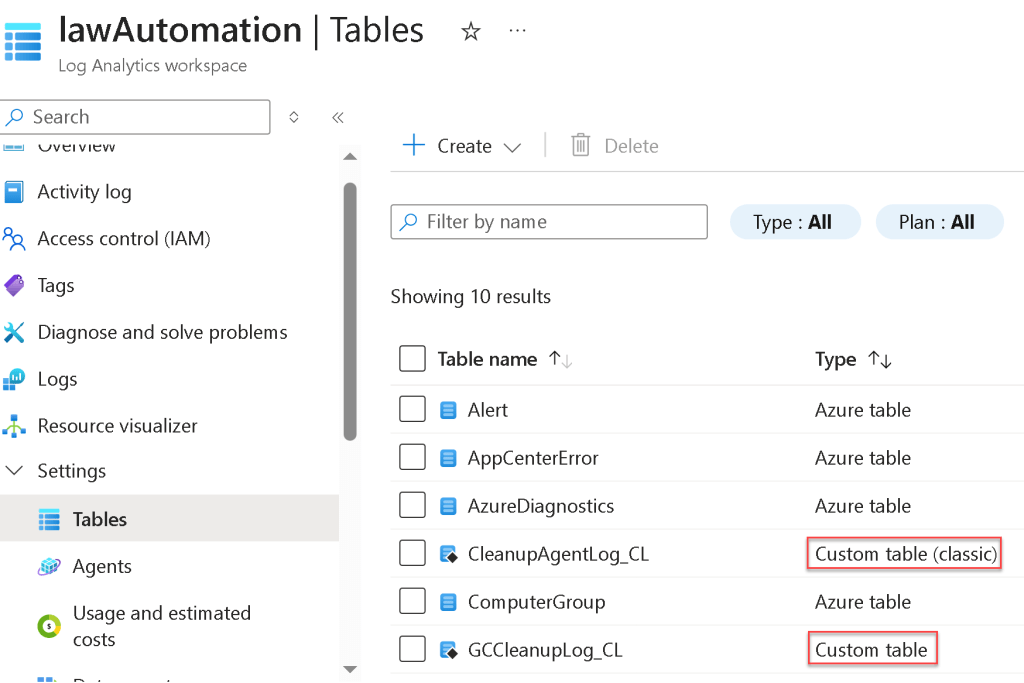
The image below shows the logs ingested by the API.
References
Migrate from the HTTP Data Collector API to the Log Ingestion API to send data to Azure Monitor Logs
Transitioning from the HTTP Data Collector API to the Log Ingestion API…What does it mean for me?
Structure of a data collection rule (DCR) in Azure Monitor
Tutorial: Send data to Azure Monitor Logs with Logs ingestion API (Azure portal)
 Ramya Jayapal